

Turn a Document or Report Into a Presentation With AI
How to turn a document into a presentation with AI, from report or proposal to an editable PowerPoint deck, keeping the figures faithful to the source.
· 6 min read
On this page
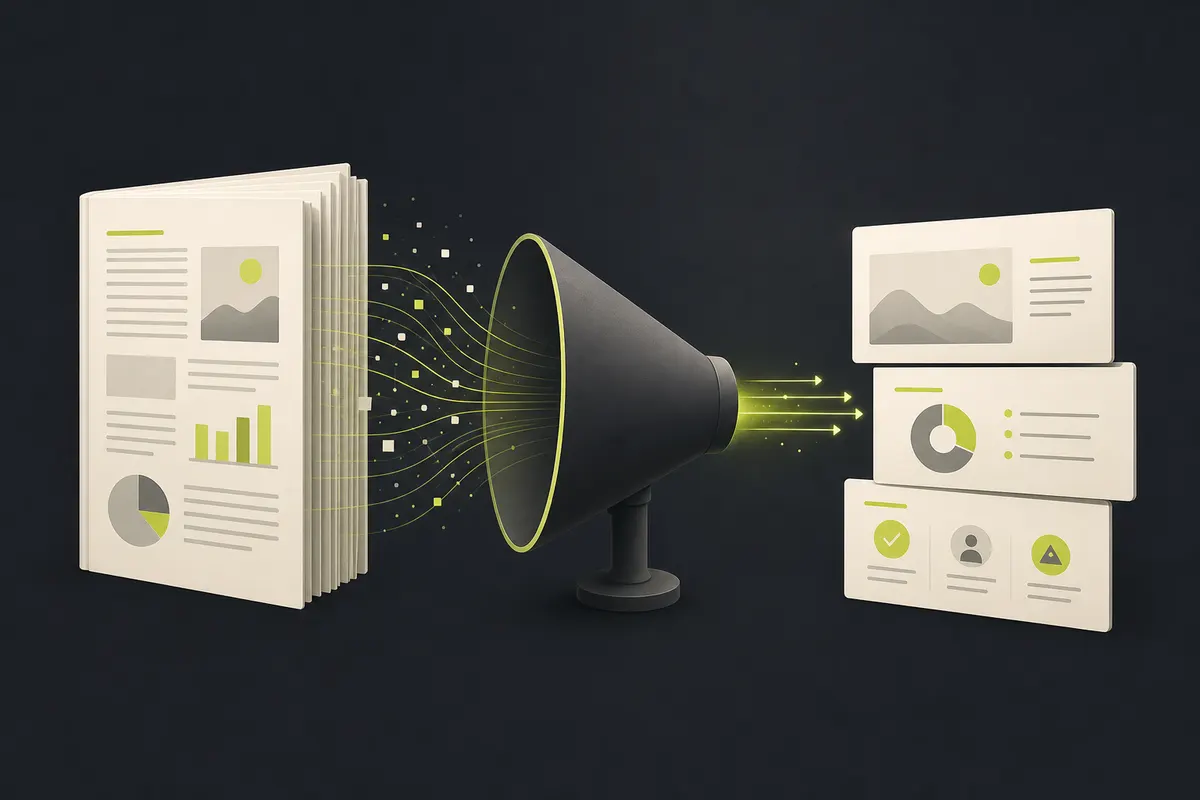
To turn a document into a presentation with AI, attach the file, tell the AI who the deck is for and what to keep, and give it a slide count. The AI then pulls out the main points, writes the slides and lays them out, and you check the result against the original. The work that matters is deciding what to cut and making sure every figure on a slide matches the source.
This post focuses on converting existing material. For building a deck from scratch, and the general habits that apply to every deck, see our complete guide on how to make a presentation with AI.
Why converting a document is different
A report and a presentation do different jobs. A report is read at the reader's pace and can hold every detail, caveat and appendix. A presentation is watched at the speaker's pace and has to carry a small number of points clearly. Converting one into the other is mostly an editing job:
- Most content goes. A 30 page report might become 10 slides. That means most paragraphs do not survive.
- The order may change. Reports often build up to conclusions. Presentations usually lead with them.
- Detail moves to speech. The slide shows the point; you explain the nuance out loud.
AI is well suited to this. It can read a long document quickly and propose a structure. What it cannot know is which findings matter most to your audience. You tell it that in the prompt.
What makes good source material
Almost any written material can become a deck, but some work better than others:
| Source | Works well for | Watch out for |
|---|---|---|
| Research or annual report | Board and leadership briefings | Long methods sections that should shrink to one slide |
| Proposal or business case | Approval meetings | Repeating the same argument across sections |
| Meeting notes or transcripts | Team updates, retros | Unclear decisions; confirm them before presenting |
| Policy or handbook | Training sessions | Legal wording; keep the exact terms where they matter |
| Spreadsheet or data export | Metrics reviews | Columns without clear labels or units |
| Article or paper | Explainers, journal clubs | Overstating findings; keep the authors' limits |
If the source is messy, a quick cleanup helps: remove draft comments, label tables and make sure numbers have units. The AI can only be as accurate as the file it reads.
Step by step in Presentation Studio
Here is the workflow on Palvoro:
- Open Presentation Studio and attach your source material.
- Write the brief. Name the audience, the goal and the slide count. Say what to focus on and what to skip.
- Set the guardrail. Tell it to use only figures from the attached document and to mark anything uncertain.
- Pick a mode. Pro is faster and costs less. Ultra uses a stronger Claude model for higher quality.
- Choose extras. Charts from the document's data can help. Web research is usually not needed when the source is complete, and leaving it off keeps the deck tied to your material.
- Check the cost shown before generating, then generate.
- Review against the source using the checklist below, then revise or edit the .pptx.
Example brief
Turn the attached 35 page customer research report into a 10 slide briefing for the product leadership team. They have not read the report and have 20 minutes. Lead with the three most important findings, then one slide on method, then recommendations with the evidence for each. Use only figures that appear in the report and keep the report's wording for any statistic. One chart for the most important finding. Mark anything you are unsure of with [CHECK].
Notice the brief tells the AI what the audience lacks (they have not read it) and how much time there is. That shapes how much context each slide needs. More examples are in our list of prompts for AI presentation decks.
Deciding what to cut
The hardest part of any conversion is choosing what stays. A useful test: for each section of the document, ask "would the audience make a different decision without this?" If not, it belongs in the appendix or the conversation, not on a slide.
Practical ways to steer the AI:
- Name the focus. "Focus on findings and recommendations" or "focus on what changes for frontline staff".
- Set a limit per section. "No more than two slides on background."
- Ask for an appendix. "Put detailed tables in an appendix after the closing slide." The main deck stays short, and the detail is there if someone asks.
- Ask for the takeaway in each title. "Each slide title should be a full sentence stating what the reader should take away." This forces the AI to decide what each slide is for.
If the first draft keeps too much, a revision such as "cut to 8 slides, keep only what supports the recommendations" usually fixes it quickly.
Keeping figures faithful to the source
This is the step you cannot skip. When AI summarizes, it can round numbers, merge two figures, drop a qualifier or describe a correlation as a cause. On a slide, those small shifts change meaning.
Check each of these against the original document:
- Every number. Same value, same unit, same time period.
- Every chart. Each bar, point or slice matches the source table. Our guide to AI presentations with charts has a full chart checklist.
- Qualifiers. "Among respondents in the pilot group" should not become "customers".
- Causation language. If the report says two things are linked, the slide should not say one causes the other.
- Quotes. Any quote on a slide must appear word for word in the source.
- Names and titles. People, teams and products spelled correctly.
Keep the original document open beside the deck while you check. It is faster than it sounds, because a 10 slide deck usually has a manageable number of facts.
Using the deck alongside the original
A converted deck works best when it points back to the source rather than replacing it:
- Reference the document on the closing slide so people know where the full detail lives.
- Send the PDF of the deck ahead of or after the meeting as a quick read, and the full document for anyone who wants depth.
- Keep the .pptx as a living summary. When the report is updated, update the deck by editing the numbers directly or with a revision request.
Because Presentation Studio gives you an editable PowerPoint file, you can also copy slides into your organization's template or merge them into a larger deck. If you need a polished file quickly, our guide to the AI PowerPoint generator covers what to look for in the .pptx output.
Cost and next steps
Palvoro charges per deck in credits, with no subscription. The exact cost appears before you generate, and it depends on the mode and the charts or images you add. You can see current rates on the pricing page. New accounts get 150 free credits to try it. For the full process from planning to delivery, return to the AI presentations guide.
FAQ
Can AI turn a PDF into a PowerPoint presentation?
Yes. Attach the PDF, describe the audience and slide count, and the AI builds a deck from its content. On Palvoro you get an editable .pptx plus a PDF of the slides. Always check figures against the original.
Will the AI copy text straight from my document?
It usually condenses and rewrites, since slides need far less text than a report. If certain wording must stay exact, such as a policy term or a statistic, say so in your brief.
How many slides should a 30 page report become?
It depends on your time and audience, not the report's length. Many briefings land between 8 and 12 slides, with detail moved to an appendix. Ask for the count that fits your slot.
Can I turn a Word document into slides?
Yes. A Word document works as source material in the same way as a PDF. Make sure headings and tables are clear, since structure in the source helps the AI find the main points.
More on ai presentations
- Complete guideHow to Make a Presentation With AI (The Complete Guide)
- 20 Prompts for AI Presentation Decks That Actually Work
- AI PowerPoint Generator for Editable .pptx Decks From a Prompt
- AI Presentation Maker for Students: How to Use It Honestly
- AI Presentation Tools Compared: What to Check Before You Pay
- AI Presentation With Charts That Keep the Numbers Accurate
- How to Build a Sales Presentation With AI Around Your Buyer