

AI Voice Changer: How Speech-to-Speech Works and Where to Use It
An AI voice changer re-performs your recording in another voice while keeping your timing and emotion. How it works, good uses, tips and consent rules.
· 6 min read
On this page
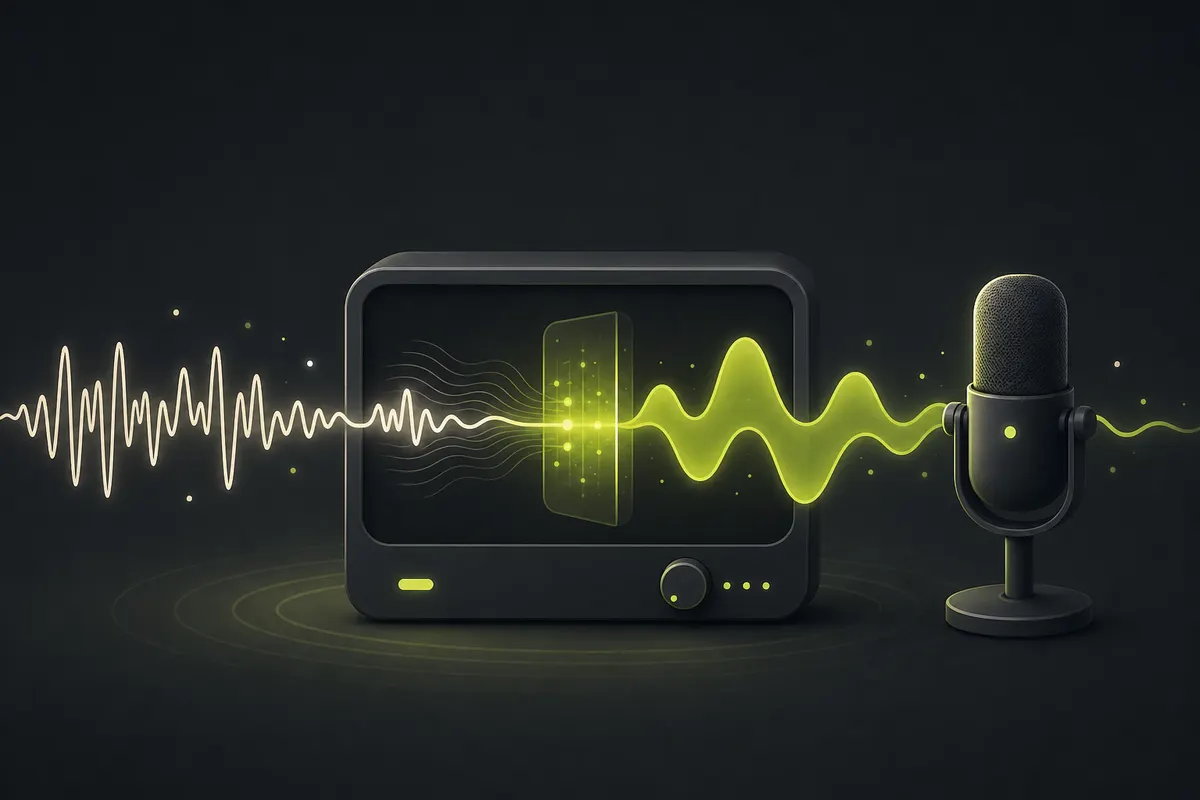
An AI voice changer takes a recording of you speaking and re-performs it in a different voice, keeping your pacing, emphasis and emotion. Unlike text-to-speech, which invents a delivery from a script, speech-to-speech copies yours. In Palvoro you upload a recording of up to five minutes, pick a voice and get the converted audio back as an MP3, with the cost shown before you run it.
Voice changing is one of the tools covered in our complete guide to AI image, video and voice generation. This post explains how it works, when it is worth using, and how to use it responsibly.
What an AI voice changer does
Older voice changers worked like audio filters. They shifted pitch up or down or added effects, and the result sounded like you with a filter on. Modern AI voice changers work differently. They analyze what you said and how you said it, then generate new audio in a target voice that follows the same performance.
The output is not your voice made deeper or higher. It is a different voice saying your words with your timing: the pause before a punchline, the stress on a key word, the laugh halfway through a sentence.
Palvoro's Voice Changer uses ElevenLabs speech-to-speech models. A multilingual model, recommended for most uses, works across 29 languages, and an English-only model is also available.
How speech-to-speech works
At a high level, a speech-to-speech model does three things:
- Reads the content: it works out the words and sounds in your recording.
- Reads the performance: it captures pitch movement, rhythm, pauses, loudness and emotional tone.
- Re-synthesizes: it generates new audio in the target voice that carries the same content and performance.
Because the delivery comes from you, speech-to-speech is often the better choice when timing and emotion matter more than speed. If you can act it, the model can re-voice it.
Voice changer vs voiceover
Both tools produce a finished voice track, but they start from different places.
| Voice Changer (speech-to-speech) | Voiceover (text-to-speech) | |
|---|---|---|
| Input | Your audio recording | A written script |
| Delivery comes from | Your performance | The model |
| Control over emotion and timing | Very high | Medium, through script and settings |
| Effort | You need to record | Type and generate |
| Best for | Characters, comedy, dramatic reads, matching a video's timing | Narration, explainers, many quick variations |
If you would rather type than record, see our guide to the AI voiceover generator, which covers scripting for text-to-speech.
Good uses for an AI voice changer
- Character voices for animation, games, audio stories and video sketches, performed by one person.
- Re-voicing a take you like. If your own reading has perfect timing but you want a different voice, keep the performance and swap the voice.
- Matching picture timing. Record while watching your clip so the words land on the right frames, then convert. This pairs well with clips from an AI video generator.
- Prototyping. Test how a script sounds in several voices before hiring a voice actor for the final.
- Privacy. Narrate tutorials or explainers without using your own voice on a public channel.
- Consistency. Keep one brand voice across videos, even when different team members record them.
How to change a voice in Palvoro
- Open Media Studio and choose Voice Changer.
- Upload your recording. MP3, WAV, M4A, OGG and WebM files are accepted, up to five minutes and 25 MB per conversion. Split longer recordings into parts.
- Pick the target voice.
- Choose the model: multilingual (recommended) or English-only.
- Turn on Remove background noise if you recorded on a phone or laptop. It cleans up room noise and hum before the voice is swapped.
- Adjust stability and similarity if needed. Higher stability gives a steadier read; higher similarity keeps the output closer to the chosen voice.
- Pick an MP3 quality, from small to high.
- Confirm you have permission to use the recording and the voice, check the credit cost shown, and convert.
The cost depends on the length of the audio and appears before you run it. Failed conversions are not charged. Current rates are on the pricing page.
Recording tips for clean results
The converted voice can only be as good as the source performance. A few minutes of preparation makes a large difference.
- Record in a quiet, soft room. Closets, bedrooms with curtains and cars are better than kitchens or offices with hard walls.
- Keep a steady distance from the mic, about a hand's width to a forearm's length.
- Avoid music or other voices in the background. The model will try to convert them too.
- Perform, do not just read. Exaggerate slightly. The emotion you put in is the emotion you get back.
- Do one speaker per file. For a dialogue with two characters, record and convert each part separately.
- Leave a second of silence at the start and end so nothing gets clipped.
- Use noise removal only when needed. On a clean recording, it is not necessary.
Here is a worked example. Say you are making a 30-second animated ad with a gruff old sea captain. Record your own reading in a quiet room, leaning into the accent and pauses, then convert it to a deep, weathered voice. You keep the comic timing you rehearsed, and you can re-record any line in seconds if it does not land.
Consent, ethics and the rules
A voice is personal, and AI makes it possible to misuse one. The rules here are simple and non-negotiable:
- Only convert recordings you have the right to use. That means your own voice, or a recording from someone who has agreed to it.
- Never imitate a real person without their permission. Using a voice changer to sound like a public figure, a coworker or a family member, for example to deceive, defraud or harass, is wrong and in many places illegal.
- Do not deceive listeners. Do not present a converted voice as a real person's statement, endorsement or review.
- Follow platform disclosure rules. Many platforms require you to label realistic synthetic media.
Palvoro asks you to confirm you have permission to use the recording and selected voice before each conversion. Providers also apply their own content policies.
For more on how voice fits with image and video in a single project, go back to the AI media guide. If you want to hear what speech-to-speech does with your own recording, sign up free and try a short clip with your signup credits.
FAQ
What is the difference between a voice changer and text-to-speech?
A voice changer converts an existing recording into another voice and keeps your delivery. Text-to-speech creates speech from a written script and the model decides the delivery.
Can an AI voice changer work in other languages?
Yes. Palvoro's recommended multilingual speech-to-speech model works across 29 languages. An English-only model is also available.
How long can my recording be?
In Palvoro, each conversion takes up to five minutes and 25 MB of audio. For longer material, split the recording into parts and convert each one.
Is it legal to use an AI voice changer?
Changing your own voice for your own content is generally fine. Imitating a real person without consent, or using a converted voice to deceive people, can break the law and platform rules. This is not legal advice, so check the rules where you live and publish.
Will background noise affect the result?
Yes. Noise and other voices can come through in the converted audio. Record in a quiet room, and use the Remove background noise option for phone or laptop recordings.
More on ai image, video and voice
- Complete guideAI Image, Video and Voice Generator Guide for 2026
- AI Image Prompts: 30 Examples and the Formula Behind Them
- AI Product Photography: Studio-Quality Shots Without a Studio
- AI Video Generator Explained: From Text Prompt to Finished Clip
- AI Voiceover Generator: Natural Text-to-Speech for Videos and Ads
- Best AI Image Generator 2026: GPT Image, Nano Banana, Grok
- Gemini Omni vs Seedance 2.5 vs Grok Video: Choosing an AI Video Model